How to Fix a Low-Resolution or Blurry Image with AI
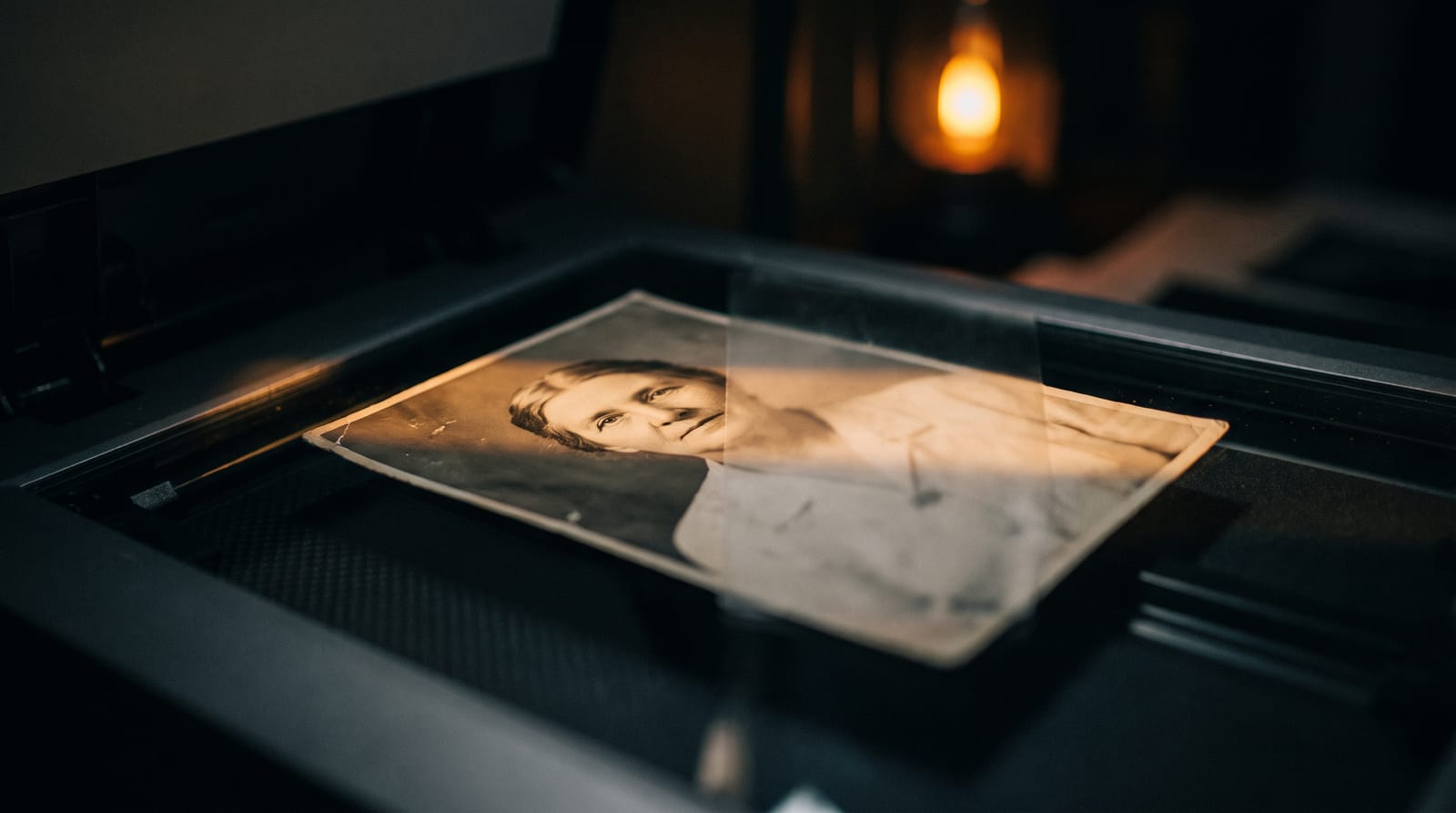
Every brand has a folder of images that are almost usable: a logo someone saved too small, a hero shot that only survived as a screenshot, a product photo squeezed to a fraction of its original size by an old CMS. You need them at modern resolution, but enlarging them the normal way just makes the softness bigger. AI upscaling is the realistic way to rescue these files — within limits worth understanding before you start.
What “low resolution” really costs you
A small or compressed image has two problems: too few pixels, and often baked-in artifacts — the blocky halos and smearing that aggressive JPEG compression leaves behind. A plain resize keeps both problems and scales them up. To fix the image you need something that adds pixels and cleans the detail at the same time, which is exactly what an AI upscaler does.
How AI rescues a soft image
Instead of stretching the existing pixels, the model reconstructs a higher-resolution version: it sharpens edges, rebuilds texture, and smooths over compression artifacts while increasing the actual resolution. The result is a larger, cleaner file you can drop into a layout that the original would have looked embarrassing in. The same engine and workflow are covered end to end in the guide to upscaling images with AI.
When an image is worth rescuing — and when it is not
- Worth it: a reasonably sharp source that is simply too small — old logos, legacy heroes, product shots saved at web size.
- Worth it: lightly compressed exports where the subject is clear but the file is soft.
- Risky: heavily blurred or motion-smeared shots — the upscaler can clean them up but cannot reinvent missing structure.
- Not worth it: tiny thumbnails of detailed scenes or small faces, where the important detail was never captured to begin with.
Fix a low-resolution image in Reelipal
- Open the image studio and switch to Upscale mode.
- Upload the low-resolution file (up to 10MB).
- Pick 2x for a moderate rescue or 4x when you need to go large (4x is available for inputs up to 2048px on the long edge).
- Check the estimated credit cost above the button, then hit Upscale.
A practical tip: do not stack passes hoping a tiny, blurry file will turn into a poster. One clean upscale from the best source you have beats two upscales of a bad one. And if the goal is a brand-new visual rather than a rescue, you can generate a fresh image from a prompt in the same image studio and upscale that instead.
An upscaler is a rescue tool, not a time machine — it makes a real image bigger and cleaner, it does not put back detail the camera never recorded.
The cost scales with the resolution you produce and is shown before you run anything, so a big rescue never turns into a surprise bill. See how AI credits work for the full picture, and the pricing page for the per-action rates.
Ready to ship your first reel?
Turn a topic into an on-brand video — podcast, product reel or image — from a single prompt.
Start free →